


Phtaya Login: Fast Account Access Without Errors
Phtaya Login should take only a few seconds when the account details, browser, and connection are all working properly. For returning Phtaya members, the Login screen keeps the choices compact: Username, Password, Remember, Forgot Password, Google sign-in, Login, and Register. Knowing which option to use prevents a simple access problem from becoming a frustrating cycle of failed attempts.
Phtaya Login Screen and Account Access
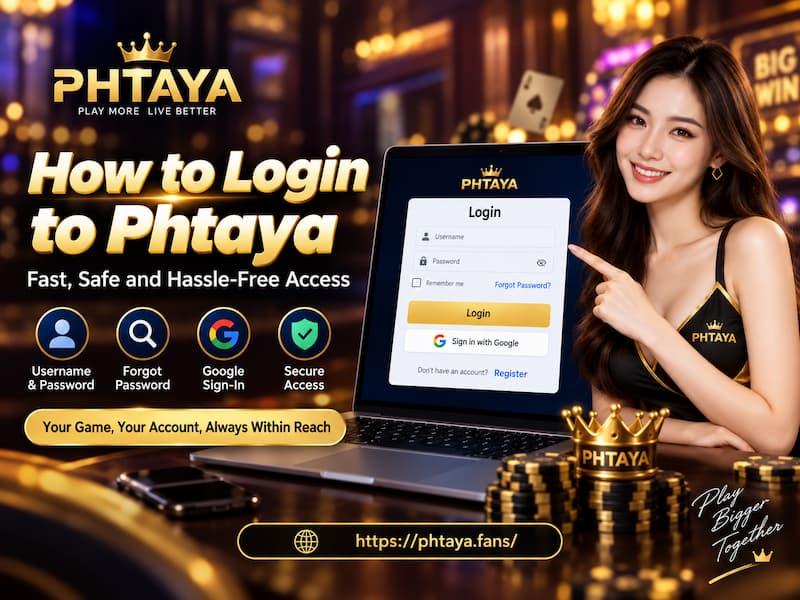
The Login window is deliberately simple. There are two main fields: Username and Password. Beneath them are the Remember checkbox and Forgot Password link, followed by Login and Register buttons. Google sign-in appears as another access option.
That simplicity is useful, but it also means each choice has a specific purpose. A returning member who already has an account normally starts with the username and password used during registration. Someone who cannot remember the password should move to recovery rather than repeatedly guessing. A new user belongs on Register, not Login.
Before typing anything, check which situation applies:
- You know both account credentials: Use the regular Login form.
- You remember the username but not the password: Choose Forgot Password.
- You normally access the account through Google: Use the Google sign-in option associated with that account.
- You have never created an account: Select Register.
- The page itself will not open: Treat it as an access or connection problem, not a password problem.
That distinction saves time. A wrong password cannot be fixed by refreshing the browser twenty times, and an unreachable page will not improve because you keep changing the password.
How to Login to Phtaya
A normal Login session should be straightforward. The safest routine is also the shortest.
- Open the correct Phtaya address. Check the address before entering account details, especially if you arrived through a search result, message, or old bookmark.
- Enter your username. Use the username connected to the existing account. Do not assume an email address or phone number can replace it unless the Login form specifically accepts that information.
- Enter your password carefully. Watch for capitalization, spaces, keyboard-language changes, and an old password inserted automatically by the browser.
- Choose Remember only when appropriate. It can make future access quicker on a private device, but it is a poor choice on a shared computer or borrowed phone.
- Press Login once and wait for the response. Repeated clicks rarely solve a genuine credential problem.
A common real-life example is browser autofill. Suppose you changed your password last week on Safari but Google Chrome still remembers the old one. The username looks correct, the password field is already filled, and Login fails. It feels like an account problem, but the stored password is simply outdated.
Another small issue is mobile typing. A username can pick up an accidental space when copied from a note or message. Since the mistake is visually difficult to notice, deleting the entry and typing it manually can be faster than repeatedly submitting the same value.
How to Login to Phtaya
Remember Me and Google Sign-In
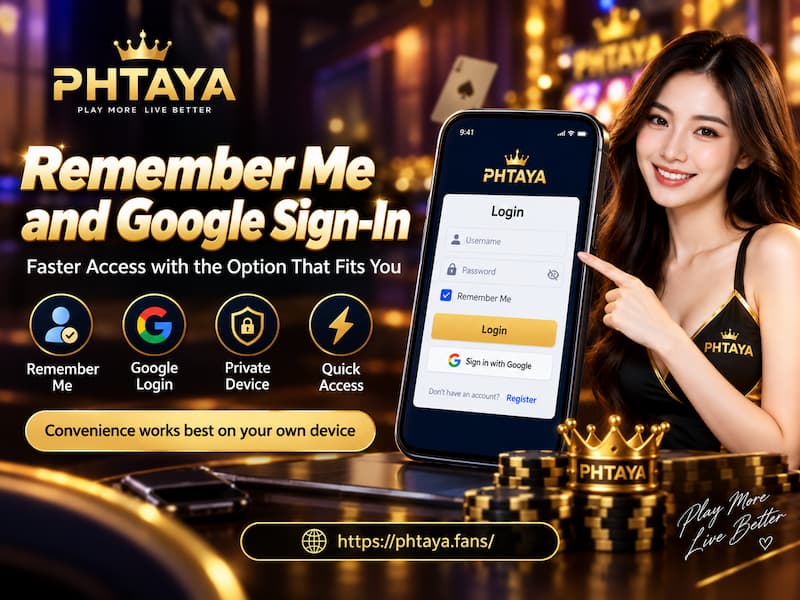
The Remember checkbox is about convenience, not account recovery.
On your own phone or personal laptop, remembering login information can reduce repetitive typing. On a family computer, office workstation, internet café PC, or device borrowed from someone else, leaving it unchecked is the better decision.
Convenience is useful only when the device itself is private. A remembered Login on a shared device can create a much bigger problem than typing a password again.
It is also worth separating Remember from staying permanently signed in. Browser cookies, expired sessions, password changes, and cleared browsing data can still require you to Login again later.
Remember Me and Google Sign-In
Google Sign-In
The Login screen also includes Google sign-in. This can be convenient when the account has already been created or connected through the appropriate Google account.
Do not automatically assume that pressing Google will open every existing account. If the original Phtaya account was created with a separate username and password, Google sign-in may follow a different account path depending on how the account was set up.
A practical habit helps here: Use the same access method consistently when it already works. Switching between username/password and Google without knowing how the account was originally connected can create unnecessary confusion.
Forgot Password and Account Recovery
A forgotten password is different from an incorrect username, a connection failure, or a page-loading problem. Once you are reasonably sure the password is the issue, Forgot Password is the sensible next move.
Repeated guessing has little value. People often rotate through several passwords they have used elsewhere, then become unsure which one was actually registered. Recovery gives you a cleaner route back into the account.
Using Forgot Password
Select Forgot Password beside the Login form and follow the verification steps presented during recovery.
The key point is to rely on the actual recovery instructions displayed there. Do not assume in advance that recovery will always use email, SMS, an OTP, or another specific method. The available verification process can depend on the account details and current recovery flow.
Before starting, make sure you can access the contact information or verification method connected to the account.
When Recovery Information Is Unavailable
This is where people often make a poor second decision: They cannot recover the old account, so they immediately create another one.
That can complicate things instead of solving them.
If the original account contains personal information, transaction history, balances, or other account records, recovering ownership should come before opening a replacement account. Use contact when account recovery requires direct support, and be prepared to verify that the account belongs to you.
Common Login Problems and Practical Fixes
Not every failed Login has the same cause. Identifying the type of failure first usually makes the fix obvious.
Correct Username, Password Rejected
Start with the small things:
- Check Caps Lock.
- Remove accidental spaces.
- Type the password manually instead of trusting autofill.
- Check whether the password was recently changed on another device.
- Confirm that the keyboard language has not switched.
- Make sure you are using the credentials for the correct account.
If uncertainty remains after a couple of careful attempts, use Forgot Password rather than continuing to guess.
Login Button Does Not Respond
When pressing Login appears to do nothing, the problem may be happening before the credentials are even checked.
Try these in order:
- Confirm that both required fields are filled.
- Refresh the page once.
- Reopen the Login window.
- Try a current browser such as Google Chrome, Safari, Microsoft Edge, or Firefox.
- Clear outdated page data if the problem persists.
- Disable a browser extension temporarily if it appears to interfere with buttons or scripts.
Switching browsers is especially useful because it separates an account problem from a browser problem. If Login works immediately in Edge but not in Chrome, the account itself is probably not the first place to investigate.
Login Page Will Not Open
A page that does not load is an access problem. A page that loads normally but rejects a password is an account problem. Treating them as the same issue leads to wasted effort.
The Phtaya Login screen also includes a 1.1.1.1 download/access prompt. That belongs to the connectivity side of access. It should not be confused with account recovery.
Using a connectivity tool cannot:
- Correct an incorrect username.
- Recover a forgotten password.
- Change account credentials.
- Resolve missing verification details.
If the page opens normally, focus on the Login form. If the page does not open at all, investigate the connection, browser, or access route first.
Login Works on One Device but Not Another
Imagine the account opens normally on an iPhone but fails on a Windows laptop. The account is clearly still accessible somewhere, so immediately resetting everything may be unnecessary. Players who mainly access Phtaya from a phone can also use app phtaya instead of relying on a desktop browser.
Compare the two devices instead:
- Is the laptop using an old saved password?
- Is the username autofilled differently?
- Does the browser have stale cookies?
- Is a translation or security extension changing page behavior?
- Has one device kept an older Login session active?
Working from that evidence is faster than treating every failed Login as an account lock.
Keeping Your Login Secure
Login security does not need to become complicated. A few habits prevent most avoidable mistakes.
Check the Address Before Entering Credentials
Do not type a username and password simply because a page contains a familiar logo. Check the address first.
This becomes especially important when opening Login links from social messages, copied URLs, advertisements, or search results. A bookmark created after confirming the correct address can make future access both faster and less error-prone.
Keep Credentials Private
Basic habits still carry the most value:
- Use a password you do not reuse on unrelated accounts.
- Do not send your password through chat.
- Avoid storing credentials on shared devices.
- Log out when another person may use the same browser.
- Review saved browser passwords after changing your Phtaya password.
- Use recovery instead of sharing account details with someone who offers to “fix” Login for you.
A Login problem is annoying. Giving the password to the wrong person turns an inconvenience into an account-security issue.
Login, Register, or Recover
Three buttons can lead to three completely different outcomes.
Existing Account
Choose Login when the account already exists and the credentials are known.
Forgotten Password
Choose Forgot Password when the account exists but the password cannot be confirmed.
New Account
Choose Register only when creating a new account. Registration should not be treated as a shortcut around recovery problems.
Google-Connected Account
Use Google sign-in when it matches the way the account was created or connected. If you have always used a normal username and password, do not assume Google automatically points to the same account.
Phtaya Login Checklist
Before spending time on troubleshooting, run through this short list:
- Confirm the address before entering credentials.
- Check the username for spelling and spaces.
- Type the password manually if autofill may be outdated.
- Use Remember only on a private device.
- Choose Forgot Password when the credential itself is uncertain.
- Separate page-loading problems from password problems.
- Use Register only for a new account.
- Keep Google sign-in consistent with the account’s existing access method.
Login becomes much easier when the problem is classified correctly. Most difficulties come from one of four places: Credentials, recovery access, browser behavior, or connectivity. Identify which one you are dealing with first, and the next action becomes far clearer.