


Phtaya Withdrawal: A Clearer Way to Cash Out Funds
Withdrawal at Phtaya brings together the details that decide whether a cash-out moves smoothly: Available balance, receiving method, account verification, amount limits, and transaction password. A careful check before submission can prevent delays and avoid duplicate requests.
Withdrawal at Phtaya
Inside the Personal Center, Withdrawal sits alongside account records, betting records, rewards, and other account controls. Once opened, the cash-out screen keeps the process fairly compact. The main choices currently available are GCash E-Wallet, Maya, and Bank Account.
That simplicity makes it tempting to move straight to the amount box, but the better order is to check the receiving account first. A withdrawal is only useful when the money is being sent to the correct, verified destination.
The screen also separates Central Wallet from Available Amount. Those figures deserve attention before entering a cash-out request. A balance visible elsewhere in the account does not automatically mean the same amount is ready for withdrawal at that moment.
A saved GCash account, for example, appears as a masked card rather than exposing the full account details. That makes identifying the selected payout method easy while keeping sensitive information partially hidden. Privacy policy covers the broader handling of account and personal data.
Before entering an amount, check four things:
- The correct withdrawal method is selected.
- The receiving account belongs to you and is verified.
- The Available Amount covers the intended withdrawal.
- The transaction password is ready.
That 20-second check is more useful than discovering a mismatch after pressing Submit.
Checks Before Submitting a Withdrawal
Confirm the Receiving Account
Phtaya specifically reminds users to verify GCash, Maya, or bank details before making a withdrawal.
An unverified receiving account may prevent the withdrawal from being credited successfully.
This is more than an account-setup detail. The receiving information is the destination of the transaction, so correcting it before submission is far cleaner than trying to trace a payout sent with incomplete or incorrect details.
Suppose a user normally receives funds through GCash but recently changed the mobile number connected to that wallet. The withdrawal screen may still display a saved GCash method. Checking that account before entering ₱10,000 is more important than simply seeing the familiar GCash logo and assuming everything is current.
Check the Available Amount
The Withdrawal area displays both Central Wallet and Available Amount, with a Refresh Balance option nearby.
If the amount available for withdrawal looks lower than expected, refresh the balance before doing anything else. Repeatedly entering a larger amount will not solve a balance that has not yet become available.
This is especially useful after recent account activity. A fresh balance check gives a clearer starting point before deciding how much to cash out.
Prepare the Transaction Password
A transaction password is required before the request can be submitted. Treat it as the final authorization step, not as a field to guess repeatedly.
If the password is unavailable or forgotten, resolve that account issue first. A withdrawal request is not a good place to experiment with possible passwords until one works.
How to Make a Phtaya Withdrawal
The complete flow can be handled in a few deliberate steps.
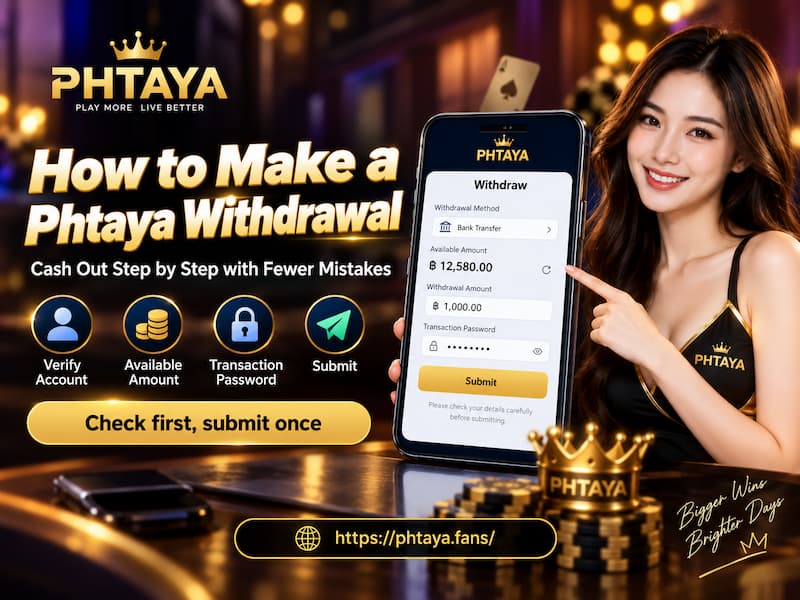
How to Make a Phtaya Withdrawal
- Open Personal Center and select Withdrawal.
This brings up the available payout methods, wallet balances, amount field, transaction password field, and recent withdrawal information. - Choose GCash, Maya, or Bank Account.
Select the destination you actually want to receive the funds. If an account has already been saved, confirm that the masked details correspond to the correct receiving account. - Check the Available Amount.
Use Refresh Balance when necessary. The number shown as available should support the withdrawal amount you are about to enter. - Enter the withdrawal amount.
The current amount field displays a range of ₱100 to ₱50,000. Stay inside the displayed limits rather than submitting an amount the form is not set up to accept. - Enter the transaction password.
Check the amount one final time before authorizing the request. - Tap Submit and verify the request.
After submitting, look at Recent Withdrawal rather than immediately creating another request.
That final step is easy to overlook. Pressing a button and seeing no obvious movement for a moment does not necessarily mean a second submission is needed. First confirm whether the original request has been recorded.
GCash, Maya, or Bank Account?
The three withdrawal methods solve slightly different needs. There is little value in declaring one universally better; the stronger choice is usually the verified account that is already under your control and easy to check.
| Method | Check Before Withdrawing | Best Fit |
| GCash E-Wallet | Correct GCash details and verification | Users who regularly receive and manage money through GCash |
| Maya | Correct Maya account and verification | Users who prefer keeping funds in their Maya wallet |
| Bank Account | Verified banking details | Users who want funds sent directly to a bank account |
For example, someone withdrawing ₱3,500 for everyday spending may prefer GCash because that wallet is already used for transfers and payments. Another user withdrawing ₱25,000 may prefer a bank account because the money is intended to stay there rather than move through an e-wallet.
Neither decision requires chasing the method that appears fastest. Correct account details and a receiving account you can access comfortably are the better priority.

GCash, Maya, or Bank Account?
Withdrawal Limits and Daily Requests
Inside Withdrawal, the amount field currently displays:
- Minimum withdrawal: ₱100
- Maximum withdrawal: ₱50,000 per request
That range affects how larger balances are handled. A request for ₱60,000, for instance, does not fit inside the displayed maximum. The user would need to work within the limits available in the account rather than forcing the full amount into one submission, while terms and conditions should be checked when account-specific restrictions also apply.
Withdrawal Processing Time and Status
Phtaya currently states a 24-hour Withdrawal Time inside the cash-out area.
That should be read as the displayed processing window, not as a promise that every transaction will arrive at exactly the same minute after submission. A withdrawal moves through several practical stages:
- The request is submitted.
- The request is recorded in Withdrawal.
- Processing takes place.
- Funds are credited to the selected GCash, Maya, or bank account.
The Recent Withdrawal panel helps separate those stages. When no request has been recorded, it may display “No Withdrawal Request.”
This makes Recent Withdrawal useful when a submission seems uncertain. Check there before submitting again. If the first request already exists, creating another one can turn a simple status check into two separate transactions that now need to be tracked.
A little patience here is often more efficient than repeated clicks.
Common Withdrawal Problems
The Receiving Account Is Not Verified
This is the first thing to check when a cash-out cannot be credited normally. Verify the selected GCash, Maya, or bank account before trying to move funds into it.
The Amount Falls Outside the Limit
If the form displays ₱100–₱50,000, a request below ₱100 or above ₱50,000 does not match the current amount range.
Adjust the amount before looking for a more complicated explanation.
Available Amount Is Lower Than Expected
Use Refresh Balance and compare Central Wallet with Available Amount. The figure that matters for the immediate request is the amount currently available to withdraw.
The Transaction Password Is Incorrect
A correct amount and verified wallet still cannot complete the submission if the transaction password cannot be confirmed.
Resolve the password issue rather than repeatedly submitting the same request.
No Withdrawal Request Appears
Check Recent Withdrawal after pressing Submit. If the area still indicates that there is no request, review the amount, available balance, receiving details, and transaction password before trying again.
Final Checks Before Tapping Submit
Withdrawal becomes much easier to manage when the final decision is based on visible account information rather than assumptions.
Before submitting, confirm:
- Available Amount: Enough funds are currently available.
- Amount: The request stays within the displayed withdrawal range.
- Destination: GCash, Maya, or the intended bank account is selected.
- Verification: The receiving account is verified and accessible.
- Transaction password: The correct password is ready.
- Status: Recent Withdrawal is checked after submission.
A user cashing out ₱8,000 to GCash, for example, should be able to answer all six points before pressing Submit. That turns the process from trial and error into a controlled transaction with a clear destination, amount, and status.